
How to Convert Static HTML into a WordPress Theme Without Breaking the Site
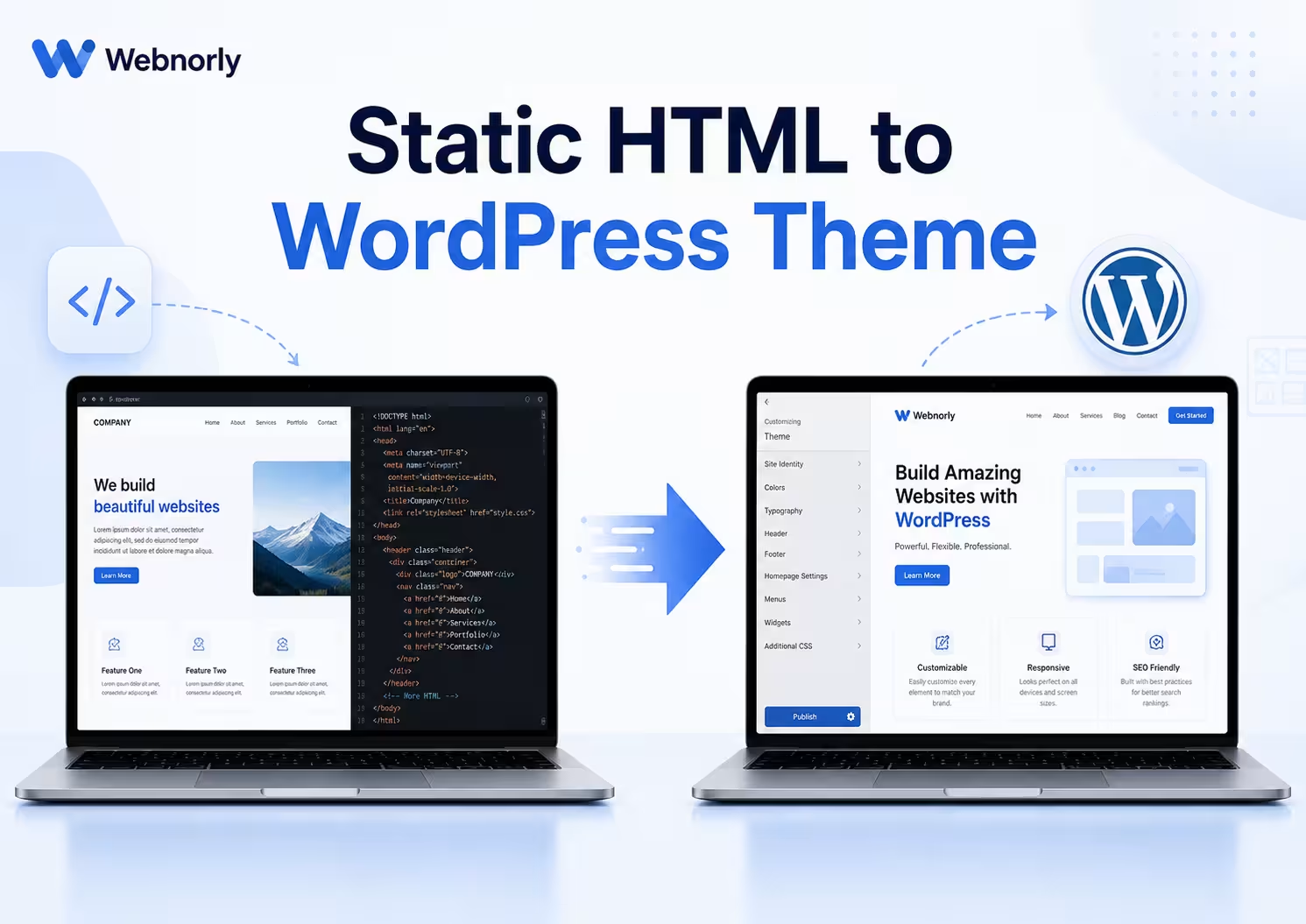
AI tools can generate beautiful static HTML sites very quickly. A homepage, pricing section, FAQ, contact block, and responsive layout can be ready in minutes, and that is useful. But a static HTML file is not the same as a WordPress theme. A static page is just markup, CSS, and JavaScript. A WordPress theme has to work inside a dynamic system with templates, hooks, menus, pages, plugins, media, forms, SEO plugins, caching, users, and sometimes WooCommerce. That difference matters.
Many WordPress problems start when someone builds a nice static design and then forces it into WordPress with shortcuts: uploading home.html, rewriting / to load an HTML file, mixing static HTML with PHP, hardcoding asset URLs, copying scripts into templates, bypassing routing, or skipping wp_head() and wp_footer(). The homepage may look fine while other parts of the site break.
This article explains how to convert static HTML into a proper WordPress theme safely, without breaking routing, plugins, forms, checkout, SEO, or future updates.
Static HTML vs WordPress Theme: The Core Difference
A static HTML site usually has files like:
home.html
about.html
contact.html
style.css
script.js
images/
Each page is a separate file, links point directly to files, and CSS and JavaScript load from direct paths. A WordPress theme works differently. A basic theme may include:
style.css
functions.php
header.php
footer.php
front-page.php
page.php
single.php
index.php
assets/
  css/
  js/
  images/
template-parts/
WordPress decides which template to load based on the current request. The theme provides the layout, but WordPress handles routing, content, plugins, menus, media, users, and dynamic behaviour. That is why a static design should be converted into the WordPress theme system, not forced around it.
Why You Should Not Just Upload HTML Files to WordPress
It is tempting to upload a file like home.html and make the homepage load it directly, often with an .htaccess rule like:
RewriteRule ^$ /home.html [L]This can make the homepage load quickly, but it also creates serious problems. WordPress may no longer handle the homepage normally, dynamic requests that depend on routing can be intercepted, plugins may not load correctly, and AJAX requests can return the wrong response. Contact forms, WooCommerce checkout, search, login redirects, multilingual URLs, and SEO output can all behave unpredictably. We have seen exactly this play out in a checkout case where a static-homepage rewrite intercepted WooCommerce AJAX and made checkout load forever.
A static HTML file is disconnected from WordPress. It does not automatically include header hooks, plugin scripts, SEO meta tags, analytics, menus, dynamic content, form processing, WooCommerce session handling, translations, cache exclusions, or admin bar logic. So even when the page looks correct, the architecture can be fragile. The better approach is to convert the HTML into a proper theme.
When Static HTML Conversion Makes Sense
Converting static HTML into a WordPress theme is worthwhile when you already have a finished design (including one generated with AI), you want WordPress to manage content, you need a reusable header and footer, you want plugin and SEO plugin compatibility, and you want future updates to be easier than juggling random HTML and PHP files. It is common for agency sites, landing pages, startup and small business sites, product sites, and custom or AI-generated homepage designs. The goal is to preserve the design while making the structure WordPress-native.
Step 1: Organize the Static Files First
Before converting anything, organize the source. A messy folder might look like this:
home.html
contact.html
over-ons.html
privacybeleid.html
style-final-new.css
style2.css
script-copy.js
logo-new-final.png
img/
old/
backup/
Clean it into something predictable:
source-html/
  home.html
  contact.html
  privacy.html
  terms.html
  assets/
    css/
    js/
    images/
Then identify which file is the homepage, which sections repeat, where the header and footer start and end, which CSS and JS files are actually used, which images are required, and which pages should become WordPress pages. Do not start coding before you understand the source structure.
Step 2: Create a Proper WordPress Theme Folder
Create a new theme folder inside:
wp-content/themes/For example:
wp-content/themes/webnorly-custom-theme/A clean starter structure:
webnorly-custom-theme/
  style.css
  functions.php
  index.php
  header.php
  footer.php
  front-page.php
  page.php
  single.php
  assets/
    css/
    js/
    images/
  template-parts/
This gives WordPress a predictable structure.
Step 3: Add the Theme Header in style.css
WordPress needs a theme header comment in style.css:
/*
Theme Name: Webnorly Custom Theme
Theme URI: https://webnorly.com/
Author: Webnorly
Description: Custom WordPress theme converted from static HTML.
Version: 1.0.0
Text Domain: webnorly
*/
Without this, WordPress may not recognize the theme correctly. You can keep your main CSS in assets/css/main.css and leave style.css mainly for theme information, as long as the header exists.
Step 4: Set Up functions.php
The functions.php file is where you add theme support, menus, and enqueue assets:
<?php
if (!defined('ABSPATH')) {
    exit;
}

function webnorly_theme_setup() {
    add_theme_support('title-tag');
    add_theme_support('post-thumbnails');
    add_theme_support('custom-logo');
    add_theme_support('html5', array(
        'search-form',
        'comment-form',
        'comment-list',
        'gallery',
        'caption',
        'style',
        'script'
    ));

    register_nav_menus(array(
        'primary' => __('Primary Menu', 'webnorly'),
        'footer'  => __('Footer Menu', 'webnorly'),
    ));
}
add_action('after_setup_theme', 'webnorly_theme_setup');
This tells WordPress your theme supports important features.
Step 5: Enqueue CSS and JavaScript Properly
Static HTML often loads assets like this:
<link rel="stylesheet" href="style.css">
<script src="script.js"></script>
In WordPress, use wp_enqueue_style() and wp_enqueue_script():
function webnorly_enqueue_assets() {
    wp_enqueue_style(
        'webnorly-main',
        get_template_directory_uri() . '/assets/css/main.css',
        array(),
        filemtime(get_template_directory() . '/assets/css/main.css')
    );

    wp_enqueue_script(
        'webnorly-main',
        get_template_directory_uri() . '/assets/js/main.js',
        array(),
        filemtime(get_template_directory() . '/assets/js/main.js'),
        true
    );
}
add_action('wp_enqueue_scripts', 'webnorly_enqueue_assets');
This lets WordPress control loading order, lets plugins add their own scripts correctly, makes cache busting easier, allows footer loading, manages dependencies, and keeps optimization plugins predictable. Avoid hardcoding CSS and JS into templates unless there is a strong reason.
Step 6: Convert the HTML Header into header.php
Move the top of the HTML file into header.php. A static file may start like this:
<!DOCTYPE html>
<html lang="en">
<head>
  <meta charset="UTF-8">
  <title>Website Title</title>
  <link rel="stylesheet" href="style.css">
</head>
<body>
<header>
  ...
</header>
In WordPress it should become:
<!DOCTYPE html>
<html <?php language_attributes(); ?>>
<head>
    <meta charset="<?php bloginfo('charset'); ?>">
    <meta name="viewport" content="width=device-width, initial-scale=1">
    <?php wp_head(); ?>
</head>
<body <?php body_class(); ?>>
<?php wp_body_open(); ?>

<header class="site-header">
    <div class="container">
        <a class="site-logo" href="<?php echo esc_url(home_url('/')); ?>">
            <?php bloginfo('name'); ?>
        </a>

        <?php
        wp_nav_menu(array(
            'theme_location' => 'primary',
            'menu_class'     => 'primary-menu',
            'container'      => 'nav',
            'container_class'=> 'site-navigation',
            'fallback_cb'    => false,
        ));
        ?>
    </div>
</header>
The key functions here are language_attributes(), bloginfo('charset'), wp_head(), body_class(), wp_body_open(), home_url(), and wp_nav_menu(). Do not remove wp_head() or wp_body_open(). Many plugins and tracking tools depend on them.
Step 7: Convert the Footer into footer.php
The bottom of the static file goes into footer.php. A static footer may look like:
<footer>
  ...
</footer>
<script src="script.js"></script>
</body>
</html>
In WordPress:
<footer class="site-footer">
<div class="container">
<p>© <?php echo esc_html(date('Y')); ?> <?php bloginfo('name'); ?>. All rights reserved.</p>
<?php
wp_nav_menu(array(
'theme_location' => 'footer',
'menu_class' => 'footer-menu',
'container' => 'nav',
'fallback_cb' => false,
));
?>
</div>
</footer>
<?php wp_footer(); ?>
</body>
</html>Do not remove wp_footer(). Many plugins load scripts through it, and removing it can break forms, analytics, WooCommerce, cookie banners, popups, sliders, mobile menu scripts, live chat, and tracking pixels. A missing wp_footer() is a common reason sites break after HTML conversion.
Step 8: Convert the Homepage into front-page.php
For a custom homepage, use front-page.php:
<?php get_header(); ?>

<main id="main" class="site-main">
    <section class="hero">
        <div class="container">
            <h1>Professional WordPress Support</h1>
            <p>Fast fixes, cleaner structure, and reliable websites.</p>
        </div>
    </section>

    <section class="services">
        ...
    </section>
</main>

<?php get_footer(); ?>
The homepage content goes between get_header() and get_footer(). Do not place another full HTML document inside front-page.php. Avoid this:
<?php get_header(); ?>

<!DOCTYPE html>
<html>
<head>
...
</head>
<body>
...
</body>
</html>

<?php get_footer(); ?>
That creates duplicate HTML structure and can cause layout, SEO, and script issues.
Step 9: Convert Inner Pages into WordPress Pages
Static pages like about.html, contact.html, privacy.html, and terms.html do not always need separate PHP templates. Often the better approach is to create normal WordPress pages in the admin, paste the cleaned content into the editor, and let page.php handle the layout. A simple page.php:
<?php get_header(); ?>

<main id="main" class="site-main">
    <div class="container">
        <?php
        while (have_posts()) :
            the_post();
            ?>
            <article id="post-<?php the_ID(); ?>" <?php post_class(); ?>>
                <h1><?php the_title(); ?></h1>
                <div class="entry-content">
                    <?php the_content(); ?>
                </div>
            </article>
            <?php
        endwhile;
        ?>
    </div>
</main>

<?php get_footer(); ?>
This keeps the site manageable. Use custom page templates only when a page needs a unique structure.
Step 10: Fix Image and Asset Paths
Static HTML often uses paths like:
<img src="images/hero.png" alt="Hero image">Inside a theme, use:
<img src="<?php echo esc_url(get_template_directory_uri() . '/assets/images/hero.png'); ?>" alt="Hero image">For media managed through WordPress, use the Media Library and dynamic fields where possible. Hardcoded paths break when the theme folder changes, the site moves domain, WordPress is in a subdirectory, a CDN rewrites paths, multilingual URLs change, or staging moves to production. Use WordPress functions for paths.
Step 11: Replace Static Menus with WordPress Menus
A static menu may look like this:
<nav>
  <a href="/">Home</a>
  <a href="/about.html">About</a>
  <a href="/contact.html">Contact</a>
</nav>
It should become a WordPress menu:
wp_nav_menu(array(
    'theme_location' => 'primary',
    'menu_class'     => 'primary-menu',
    'container'      => 'nav',
    'container_class'=> 'site-navigation',
));
Then create and assign the menu in Appearance → Menus or Appearance → Editor → Navigation, depending on the setup. This makes future menu changes easier for the site owner.
Step 12: Keep Forms WordPress-Native
Static contact forms usually look like:
<form action="mailto:[email protected]">
...
</form>
That is not ideal for WordPress. Use Contact Form 7, Fluent Forms, WPForms, Gravity Forms, or a secure custom handler. Forms need validation, spam protection, email deliverability, nonce verification, sanitization, success and error messages, and logging where needed. Keep the form design, but connect it to a real WordPress form system rather than pasting a static form and expecting it to behave like one.
Step 13: Preserve SEO and Plugin Output
Static HTML often hardcodes meta tags:
<title>Page Title</title>
<meta name="description" content="...">
In WordPress, SEO plugins handle these dynamically, but only if the theme includes wp_head() inside header.php. SEO plugins output title tags, meta descriptions, canonical URLs, Open Graph and Twitter tags, schema, and robots tags. If your converted theme skips WordPress hooks, that output disappears. Also check breadcrumbs, the sitemap plugin, analytics, cookie consent, multilingual meta tags, and structured data. A visually correct theme can still be technically weak if plugin output is missing.
Step 14: Keep WooCommerce Native When Relevant
If the site uses WooCommerce, do not convert cart and checkout into static HTML. WooCommerce pages must stay dynamic, since they handle cart sessions, checkout fields, payment gateways, tax, shipping, coupons, order creation, email triggers, the thank-you page, and account pages. You can style them with CSS and safe hooks, but do not rebuild them as static pages without a very specific reason. For most projects, keep the templates native, style with CSS, use hooks for small changes, override templates only when needed, and test the full order flow. A proper conversion should not break WooCommerce routing or checkout scripts.
Step 15: Avoid Duplicate Headers, Footers, and Sidebars
A common conversion issue is WordPress outputting unexpected default sections: a search box, recent posts, recent comments, archives, categories, or a default sidebar. This usually happens when the wrong template loads or get_sidebar() is still included. Search your theme files for:
get_sidebar();
dynamic_sidebar();
the_widget();
Remove sidebar calls from templates where they are not needed, and make sure front-page.php is actually loading. A quick test is to add this at the top of front-page.php temporarily, refresh the homepage, then remove it immediately:
<?php
die('front-page.php is loading');
This confirms which template WordPress is using.
Step 16: Make the Theme Mobile Responsive
Your design may already be responsive, but conversion can still break mobile layout. Check the mobile header, menu toggle, hero, cards, forms, tables, checkout if WooCommerce exists, footer columns, buttons, long headings, image scaling, and spacing. Use DevTools and real device testing where possible, paying special attention to:
max-width
overflow-x
grid-template-columns
flex-wrap
position: fixed
sticky headers
A common post-conversion problem is horizontal scrolling on mobile because one section is wider than the viewport. Add this only as a debugging step, not a final blind fix, then find the actual element causing the overflow:
* {
    box-sizing: border-box;
}

img {
    max-width: 100%;
    height: auto;
}
Step 17: Test the WordPress Template Hierarchy
WordPress chooses a template based on the hierarchy:
front-page.php  → homepage
page.php        → normal pages
single.php      → blog posts
archive.php     → archives
index.php       → fallback
404.php         → not found page
At minimum, include:
index.php
front-page.php
page.php
single.php
A very basic index.php:
<?php get_header(); ?>

<main id="main" class="site-main">
    <div class="container">
        <?php
        if (have_posts()) :
            while (have_posts()) :
                the_post();
                the_title('<h2>', '</h2>');
                the_excerpt();
            endwhile;
        else :
            echo '<p>No content found.</p>';
        endif;
        ?>
    </div>
</main>

<?php get_footer(); ?>
WordPress needs a fallback template, so do not rely only on front-page.php.
Step 18: Test After Activation
After activating the theme, test the homepage, normal pages, a blog post, the 404 page, search, the contact form, menu links, the mobile menu, footer links, the admin bar, SEO plugin output, the cookie banner, analytics, and cache plugin behaviour. If WooCommerce is present, also test the product page, cart, checkout, payment method selection, the order received page, and emails. The site is not ready just because the homepage looks correct. A theme is ready when the full website flow works.
Common Mistakes During Conversion
Keeping hardcoded local file paths
Bad:
<link rel="stylesheet" href="C:/Users/Desktop/site/style.css">Better: enqueue with wp_enqueue_style().
Forgetting wp_head() and wp_footer()
This breaks plugin scripts and SEO output.
Duplicating full HTML documents inside templates
Templates should not contain duplicate html, head, and body tags when using get_header() and get_footer().
Serving the homepage through .htaccess
Use front-page.php instead.
Hardcoding menus
Use wp_nav_menu().
Breaking dynamic plugin pages
Do not override dynamic behaviour with static markup.
Ignoring mobile
Test real layouts, not only desktop.
Editing live without a backup
Always keep a rollback option.
A Safer Conversion Workflow
A reliable workflow looks like this:
- Back up the current site.
- Create a staging site.
- Organize the static HTML files.
- Create a new theme folder.
- Add
style.cssandfunctions.php. - Enqueue CSS and JS.
- Build
header.phpandfooter.php. - Convert the homepage into
front-page.php. - Create
page.php,single.php, andindex.php. - Replace hardcoded paths.
- Register WordPress menus.
- Connect forms properly.
- Test plugin output.
- Test mobile.
- Test business-critical flows.
- Deploy carefully.
- Clear cache and retest.
This is slower than uploading an HTML file, but it is safer and far more maintainable.
When to Ask for Help
It is worth getting WordPress help if the homepage works but other pages look broken, default widgets appear unexpectedly, CSS does not load, mobile breaks after conversion, plugins stop working, forms do not submit, WooCommerce checkout gets stuck, menus cannot be edited in WordPress, SEO tags are missing, WordPress loads the wrong template, static .html files are mixed with theme PHP, or .htaccess rules are being used to force pages. These usually mean the structure needs cleanup, not more patches.
Final Thoughts
Converting static HTML into WordPress is not just renaming files from .html to .php. A proper conversion moves the design into WordPress architecture: header in header.php, footer in footer.php, homepage in front-page.php, content through page.php, CSS and JS enqueued properly, menus managed by WordPress, forms handled securely, plugins allowed to work through hooks, and routing kept inside WordPress. AI-generated HTML can be a good starting point, but the final site still needs proper structure. Done correctly, you get both a custom design and a maintainable site.
If your site currently mixes static HTML, custom PHP, and WordPress templates, Webnorly can clean up the structure and convert it into a stable WordPress theme. Send us the site and we’ll map out the safest path from your current setup to a proper theme.
Related articles
AI-Generated WordPress Code Review Checklist
AI can generate WordPress code in seconds, but a snippet that looks correct can still break checkout, redirects, AJAX, or plugin compatibility. This 20-point checklist gives you a practical way to review AI-generated code before it touches functions.php, .htaccess, or WooCommerce, covering placement, hooks, sanitization, escaping, security, performance, and a rollback plan.
Read articleBefore You Paste AI-Generated PHP into WordPress, Check These Things
AI can write a WordPress PHP snippet in seconds, but pasted in without review it can trigger warnings, break checkout AJAX, cause a white screen, or create redirect loops. Here are the 14 things to check before you paste AI-generated PHP into WordPress, from variable checks and sanitization to hooks, nonces, and a safer placement strategy, with before-and-after code.
Read articleWooCommerce Checkout Stuck Loading? Common Causes and Fixes
A WooCommerce checkout that keeps spinning blocks orders and quietly costs you sales while the rest of the site looks fine. The spinner is only the symptom. This guide covers the 11 most common causes, from AJAX returning HTML to caching, PHP warnings, server rewrites, and firewall blocks, plus a step-by-step process to find the request that's actually failing.
Read article